
⚠️ Note: This is an AI-generated sample blog post created to demonstrate the blog creation workflow. It is provided for reference purposes only to showcase the blog structure, markdown formatting, and image integration capabilities.
Introduction
Docker Compose is a powerful tool for defining and running multi-container Docker applications. Instead of managing multiple containers individually, you can define your entire application stack in a single YAML file and manage it with simple commands.
In this guide, you'll learn how to use Docker Compose to orchestrate multiple containers, making your development and deployment workflow much simpler.
Why Docker Compose?
Before Docker Compose, developers had to:
- Run multiple
docker runcommands with complex arguments - Manually link containers together
- Keep track of environment variables across containers
- Restart containers in the correct order
Docker Compose solves all of these problems with declarative configuration.
Prerequisites
Before we begin, make sure you have:
- Docker installed on your system
- Basic understanding of Docker containers
- A text editor for creating configuration files
Installing Docker Compose
Docker Compose comes pre-installed with Docker Desktop. For Linux users, you can install it separately:
# Download Docker Compose
sudo curl -L "https://github.com/docker/compose/releases/latest/download/docker-compose-$(uname -s)-$(uname -m)" -o /usr/local/bin/docker-compose

# Make it executable
sudo chmod +x /usr/local/bin/docker-compose

# Verify installation
docker-compose --version
Basic Docker Compose Structure
A docker-compose.yml file defines services, networks, and volumes. Here's the basic structure:
version: '3.8'

services:
  service-name:
    image: image-name:tag
    ports:
      - "host:container"
    environment:
      - KEY=value
    volumes:
      - host-path:container-path
Practical Example: Web App with Database
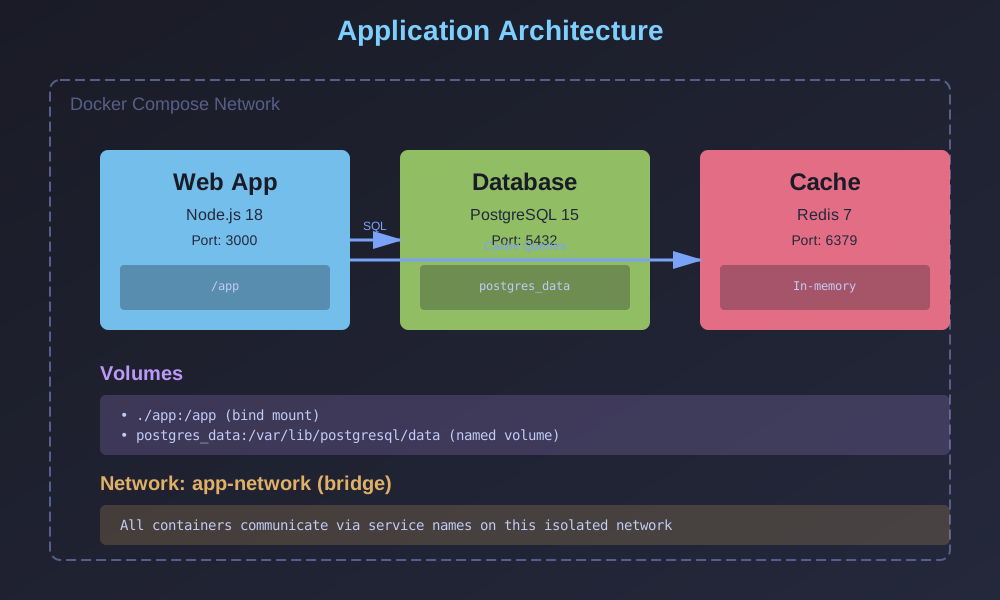
Let's build a complete example with a Node.js application and a PostgreSQL database.
Step 1: Create the Project Structure
mkdir my-docker-app
cd my-docker-app
Step 2: Create docker-compose.yml
version: '3.8'

services:
  # PostgreSQL Database
  database:
    image: postgres:15-alpine
    container_name: my_postgres_db
    environment:
      POSTGRES_USER: myuser
      POSTGRES_PASSWORD: mypassword
      POSTGRES_DB: myappdb
    ports:
      - "5432:5432"
    volumes:
      - postgres_data:/var/lib/postgresql/data
    networks:
      - app-network
    healthcheck:
      test: ["CMD-SHELL", "pg_isready -U myuser"]
      interval: 10s
      timeout: 5s
      retries: 5

  # Node.js Application
  webapp:
    image: node:18-alpine
    container_name: my_node_app
    working_dir: /app
    environment:
      DATABASE_URL: postgres://myuser:mypassword@database:5432/myappdb
      NODE_ENV: development
    ports:
      - "3000:3000"
    volumes:
      - ./app:/app
      - /app/node_modules
    command: npm start
    depends_on:
      database:
        condition: service_healthy
    networks:
      - app-network

  # Redis Cache (Optional)
  cache:
    image: redis:7-alpine
    container_name: my_redis_cache
    ports:
      - "6379:6379"
    networks:
      - app-network

volumes:
  postgres_data:

networks:
  app-network:
    driver: bridge
Step 3: Understanding the Configuration
Let's break down the key components:
| Component | Purpose | Example |
|---|---|---|
| services | Defines containers to run | webapp, database, cache |
| ports | Maps host:container ports | "3000:3000" |
| volumes | Persists data and mounts code | postgres_data, ./app:/app |
| networks | Allows container communication | app-network |
| depends_on | Controls startup order | webapp depends on database |
Essential Docker Compose Commands
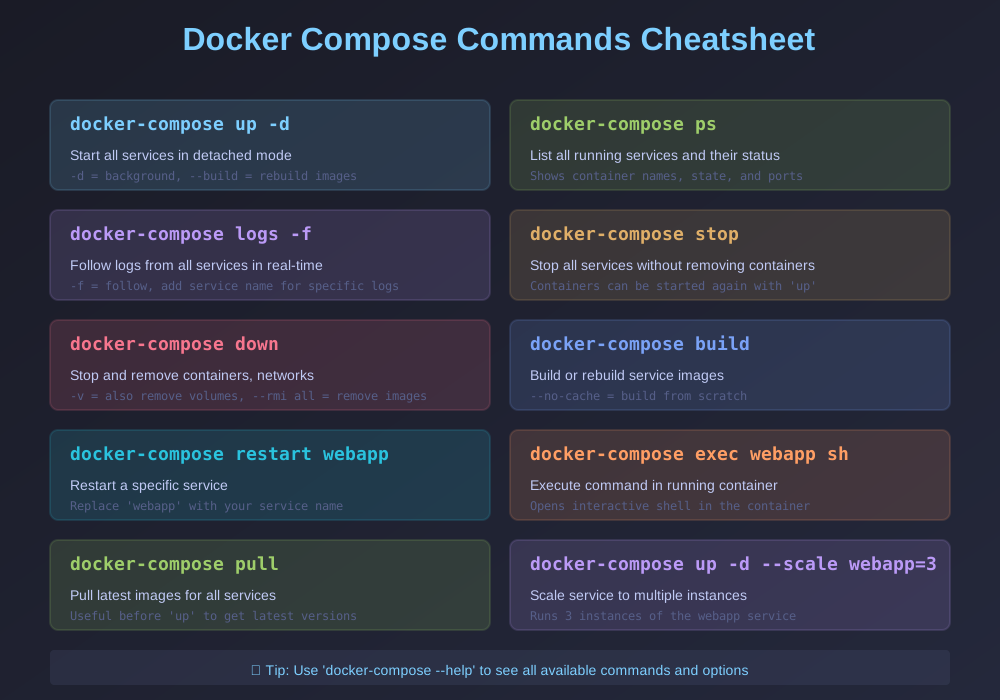
Here are the most common commands you'll use:
# Start all services in detached mode
docker-compose up -d

# View running services
docker-compose ps

# View logs from all services
docker-compose logs

# View logs from a specific service
docker-compose logs webapp

# Follow logs in real-time
docker-compose logs -f

# Stop all services
docker-compose stop

# Stop and remove containers, networks
docker-compose down

# Stop and remove everything including volumes
docker-compose down -v

# Rebuild images
docker-compose build

# Restart a specific service
docker-compose restart webapp
Advanced Features
Environment Variables
You can use a .env file to manage environment variables:
# .env file
POSTGRES_VERSION=15
NODE_VERSION=18
APP_PORT=3000
Then reference them in docker-compose.yml:
services:
  webapp:
    image: node:${NODE_VERSION}-alpine
    ports:
      - "${APP_PORT}:3000"
Scaling Services
You can scale services to run multiple instances:
# Run 3 instances of the webapp
docker-compose up -d --scale webapp=3
Health Checks
Health checks ensure services are ready before dependent services start:
healthcheck:
  test: ["CMD", "curl", "-f", "http://localhost:3000/health"]
  interval: 30s
  timeout: 10s
  retries: 3
  start_period: 40s
Best Practices
- Use specific image tags - Don't use
latestin production - Separate development and production configs - Use
docker-compose.prod.yml - Keep secrets secure - Use Docker secrets or external secret management
- Use .dockerignore - Exclude unnecessary files from the build context
- Named volumes for data - Never use bind mounts for database data in production
- Development environments - Replicate production locally
- CI/CD pipelines - Consistent test environments
- Microservices architecture - Manage multiple services
- Integration testing - Spin up dependencies quickly
- Installing and setting up Docker Compose
- Understanding the docker-compose.yml structure
- Building a multi-container application with database and cache
- Essential commands for managing containers
- Best practices and common troubleshooting
Tip: Always use health checks for databases and critical services to ensure proper startup order.
Common Issues and Solutions
Issue 1: Port Already in Use
Problem: Error: bind: address already in use
Solution:
# Find what's using the port
sudo lsof -i :3000

# Stop the conflicting service or change the port mapping
ports:
  - "3001:3000"
Issue 2: Volume Permission Errors
Problem: Permission denied when writing to volumes
Solution:
services:
  webapp:
    user: "${UID}:${GID}"  # Use host user ID
Issue 3: Containers Can't Communicate
Problem: Containers can't reach each other
Solution: Ensure they're on the same network and use service names (not localhost):
# Use this
DATABASE_URL: postgres://database:5432

# Not this
DATABASE_URL: postgres://localhost:5432
Real-World Use Cases
Docker Compose is perfect for:
Monitoring and Debugging
View Resource Usage
# Check container stats
docker stats

# Or using compose
docker-compose top
Execute Commands in Running Containers
# Access database shell
docker-compose exec database psql -U myuser -d myappdb

# Access application shell
docker-compose exec webapp sh

# Run a one-off command
docker-compose run webapp npm test
Summary
In this guide, we covered:
Docker Compose simplifies container orchestration and makes it easy to define complex applications as code.
Conclusion
Docker Compose is an essential tool in the modern DevOps toolkit. By defining your infrastructure as code, you gain reproducibility, version control, and simplified deployment workflows.
Start small with a single service, then gradually add more components as you become comfortable with the tool. The declarative nature of Docker Compose makes it easy to understand and maintain your application architecture.
Happy containerizing! 🐋